FOR ANDROID USERS: How to Get the Premium Feed on Your Android Mobile Device
Recommended app:Podcast Addict for Android, available in the Google Play Store.
Follow these steps to set up the Premium Podcast using the Podcast Addict app for Android. Examples shown below are on a tablet, so keep in mind that it may look slightly different on your device.
1. Download the Podcast Addict App
Podcast Addict app
Google Play Store
On your device, go to the Google Play Store and download the Podcast Addict app.
(*Note: If you’ve never used the Google Play store you may be required to set up an account, including payment information. This is unrelated to Genealogy Gems, but necessary in order to download apps from the Google Play Store.)
Recommended app:Podcast Addict for Android, available in the Google Play Store.
Follow these steps to set up the Premium Podcast using the Podcast Addict app for Android.
NOTE: Examples shown below are on a tablet, so keep in mind that it may look slightly different on your device.
2. Add the Genealogy Gems Premium Podcast Feed
Tap the + icon to add a feed
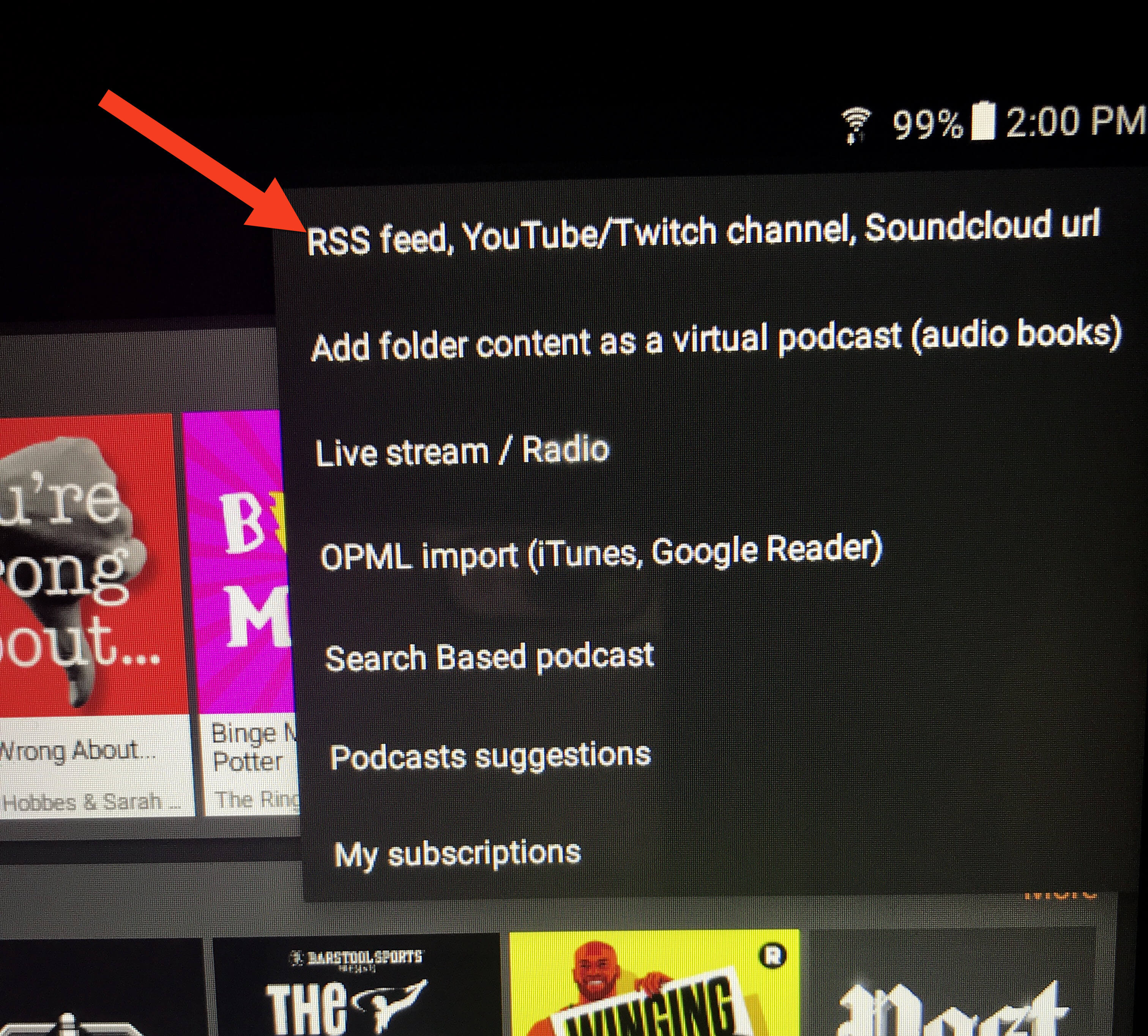
Tap “RSS Feed, YouTube/Twitch Channel, Soundcloud URL”
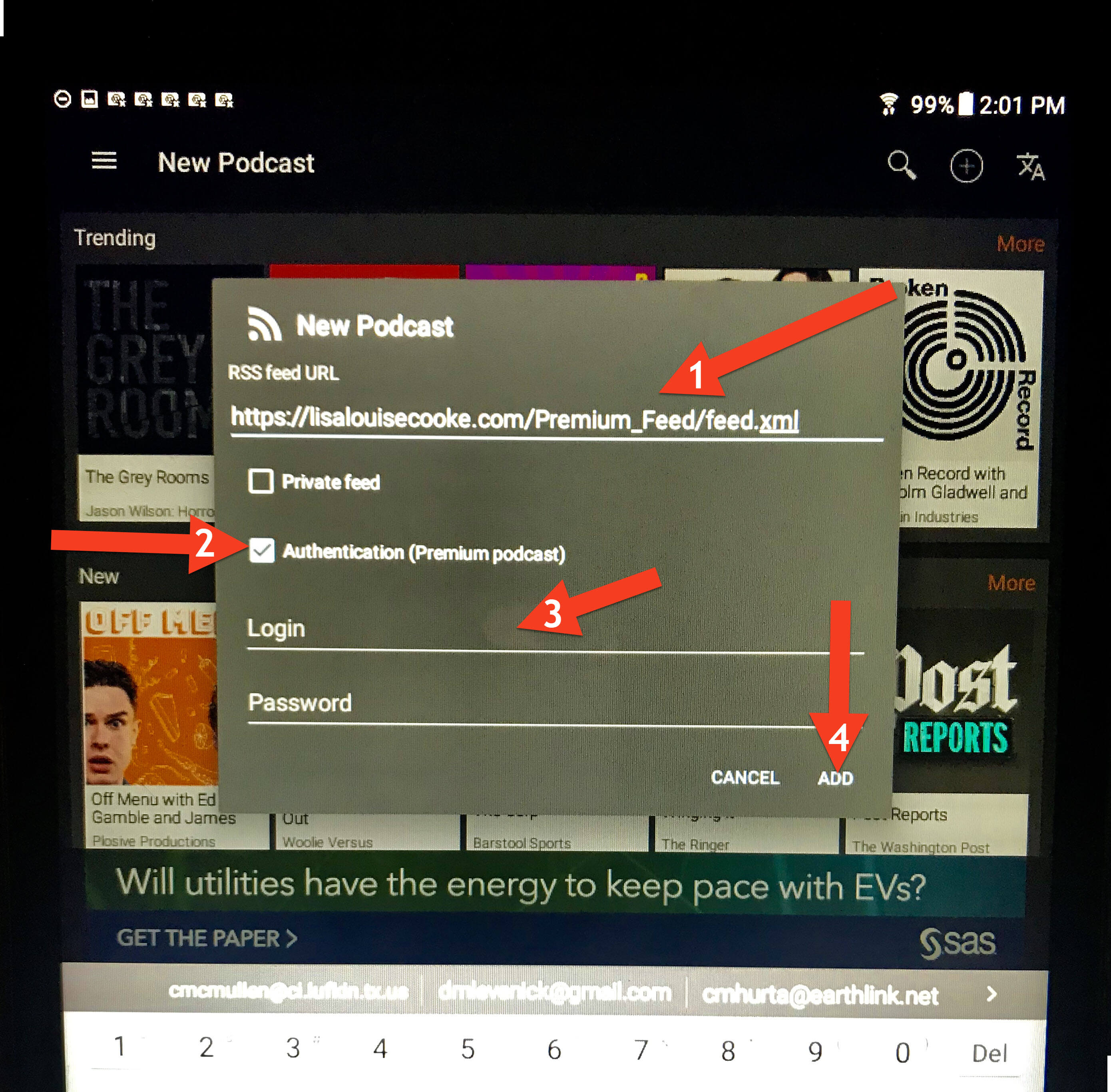
In the “RSS feed URL” field, copy and paste this address to ensure it is exactlycorrect with no extra spaces at the end (the feed address is case sensitive): https://lisalouisecooke.com/Premium_Feed/feed.xml
Check the box for “Authentication (Premium Podcast)”
Type in your Genealogy Gems Premium Membership username and password. You MUST use your membership username, NOT your email address.
Tap “Add”
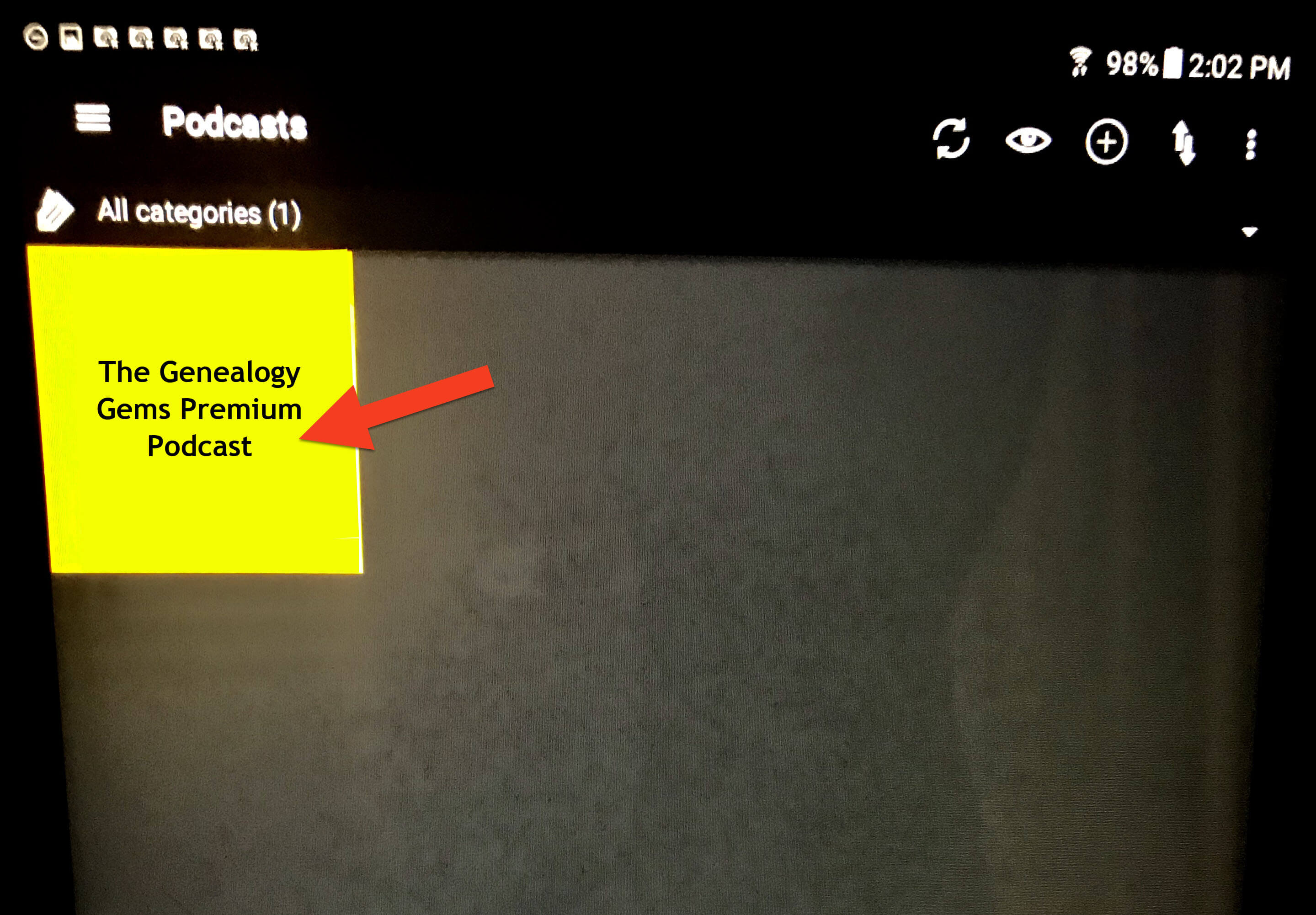
Your Podcast home screen will now have the Genealogy Gems Premium Podcast.
Tap the podcast icon. It may appear yellow like this or it may be our logo) to reveal all episodes, starting with the most recent episode at the top of the list.
3. Downloading Episodes
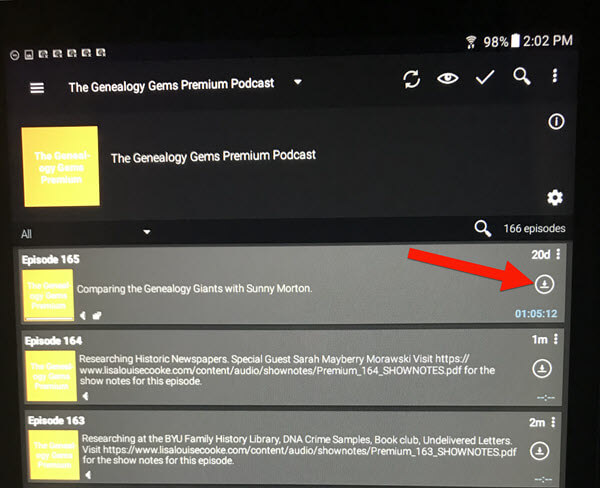
You can download episodes so that you can listen offline, without an internet connection or using your device’s cellular data. Download an episode by tapping the down arrow icon on the right:
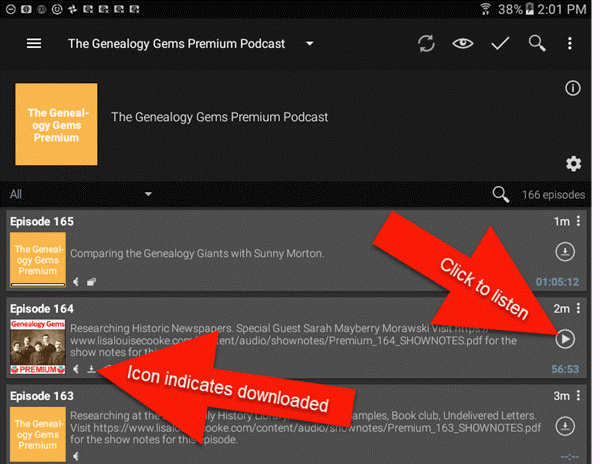
Once the episode is downloaded, a play button will appear that you can click to listen. A small download icon will appear indicating that this episode is downloaded to your device:
3. Listening to Episodes & Viewing Show Notes
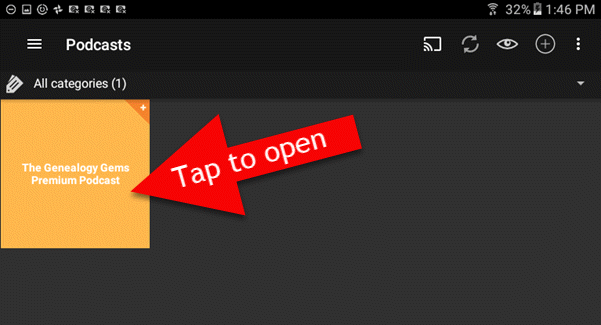
When you open the app, tap the Genealogy Gems Premium podcast to access episodes:
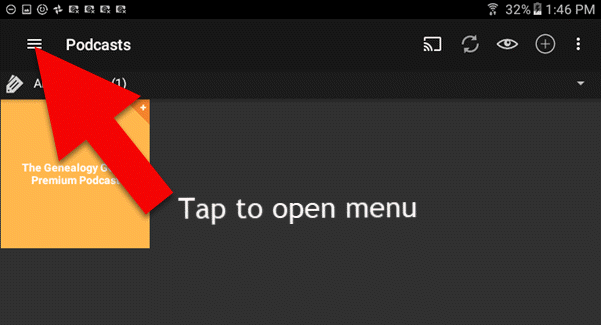
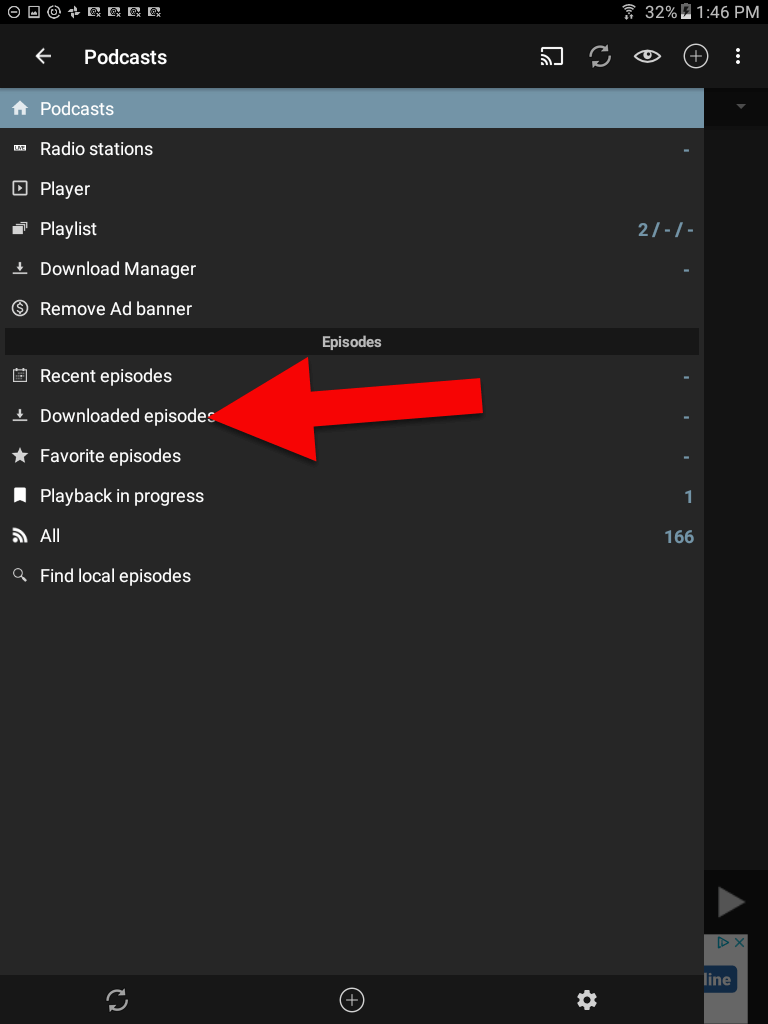
You can go straight to the episodes you’ve already downloaded through the app’s menu. Tap the three lines icon:
Then tap Downloaded episodes:
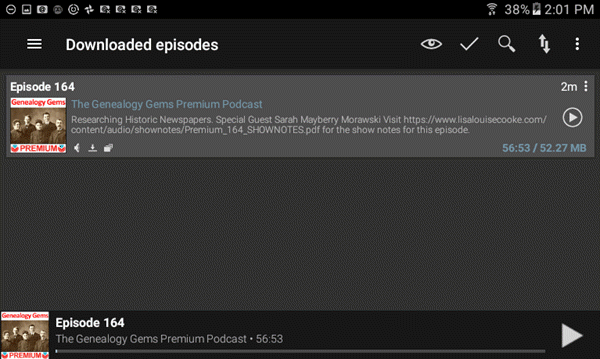
On this screen are only the episodes you have downloaded for offline listening. To return to all episodes just tap the 3 line icon in the upper left corner.
4. Deleting Downloaded Episodes
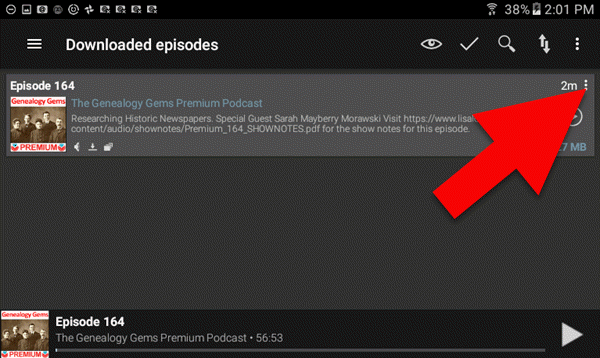
After you have listened to a downloaded episode, you can delete it to free up the space on your device. (Don’t worry, all of the episodes are still available through the main podcast feed in Podcast Addict.) To delete an episode in the Downloaded Episodes area, tap the 3 dots icon on the episode you want to delete:
(Note: If you want to delete all the episodes that you’ve already played, click the 3 dots icon at the very top of the right-hand corner, and then tap “Delete Played Episodes”)
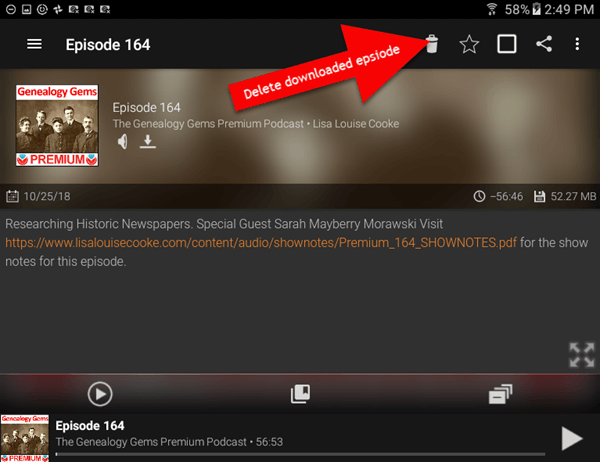
On the page for that downloaded episode tap the trash can icon to delete it from your device:
Need More Help?
If you’re experiencing error messages or other technical difficulties, please visit our Premium eLearning FAQ page and head to the Troubleshooting section towards the bottom. You’ll find answers to the most common causes of problems and solutions and tips to fix them.
Gretna Green is a term you need to know if you are searching for marriage records. In this video professional genealogist J. Mark Lowe joins me to discuss Gretna Green: what it means, why it matters, and how Gretna Greens may have affected your ability to find your ancestors’ marriage records.
Listen to the Podcast Episode
To Listen click the media player below (AUDIO ONLY):
Premium Members Exclusive Download: Log into your Premium membership and then click here to download the handy PDF show notes that complement this podcast episode.
Become a Genealogy Gems Premium Member
Premium Members have exclusive access to:
Exclusive video classes with downloadable handouts
The Genealogy Gems Premium Podcast with downloadable handout
Has it been a while since you worked on your genealogy research? As passionate as we may be about genealogy, the reality is that a little thing called “Life” can get in the way! Getting back into genealogy can actually be a bit daunting. Where did you leave off? Where should you start back up?
If it’s been months or even years since you had your hands in genealogy, you’re in the right place. In this episode, we’re going to talk about how to pick up your genealogy after a hands-off spell so that you can quickly and efficiently get back on the trail of your ancestors.
This episode will also help if you feel like you’ve gotten a little out of control and disorganized in what you’ve been doing so far. This process also works very nicely as a quick audit to help you get back on track.
Listen to the Podcast Episode
To Listen click the media player below (AUDIO ONLY):
Get 20% off a Publisher Extra subscription. Click here and use coupon code genealogygems
Visit Fort Wayne
Fort Wayne, Indiana is the home of the second-largest free genealogy library in the country. Make your plans to visit today. Learn more at https://www.visitfortwayne.com
Show Notes: Google Books is known for having millions of free digitized books. But did you know that it’s also packed with hidden old newspapers? Since newspapers don’t typically appear in your initial search results in Google Books, I’ll show you two ways to filter down to only newspapers. Plus I’ll also show you some of the most effective ways to quickly find the right ancestor and the right article.
Listen to the Podcast Episode
To Listen click the media player below (AUDIO ONLY):
Newspapers.com
Get 20% off a Publisher Extra subscription. Click here and use coupon code genealogygems
Visit For Wayne
Fort Wayne, Indiana is the home of the second largest free genealogy library in the country. Make your plans to visit today. Learn more at https://www.visitfortwayne.com
Genealogy Center at the Allen County Public Library
 Recommended app: Podcast Addict for Android, available in the Google Play Store.